So I have had my new Samsung Chromebook Pro since spring break and have used it periodically. I needed to find a suitable replacement for my Note Pro 12.2 that was getting old and slowing down. It is still on Android 4.4 (they are now on 8.1). Also, the Android app for Google Docs on my tablet wouldn't render some of my Google Docs properly. On some occasions my formulas and math type wouldn't show up at all.
I won't go through a typical review because the Pro lives up to all the hype. It is a really nice Chromebook. The screen is sharp and bright. The battery life is good. And despite what people have said about the smaller keyboard, I have not had any issues adjusting to it. In fact, the cut in half back space is perfect to my pinky to just go up and hit. It is very thin despite the fact that there is a physical keyboard attached to it. It feels solid in the hand and the lid feels sturdy every time I open it or flip it around.
If I was to compare it to my old Dell Chromebook 12 (i3 model), I would say it is better. The Dell was a great Chromebook, but it was heavy and thick. The Chromebook Pro is just as fast and responsive, but it so much thinner.
Instead of a typical review, I will be comparing it to the Note Pro 12.2 since that is what I am replacing it with. I also think the Pro is a good descendant to the Note Pro. The are both made by Samsung, they both have the same screen size, and they both utilize the S Pen.
Screen Sharing
I use my Note Pro for lectures pretty much every day. I give my students a Google Doc as a template for them and I edit over the notes using the screen capture tool. I connect my Note Pro to Samsung's wireless dongle that allows me to share my screen through the projector. If the network was down, it didn't matter because the Note was communicating with the dongle and nothing else. The Note would always connect. It just worked. Very nice.
This is where the first difference was noticeable. The Chromebook Pro wouldn't connect to the dongle because it isn't a Chromecast. I expected this to happen, so it wasn't a surprise. I figured I would bring in my Chromecast and connect my Chromebook Pro to it and cast my screen that way. Well our network is WPA Enterprise, which basically means we have a unique ID & unique password to access our network. A Chromecast can't connect to that type of network, so I was stuck. I then tried an ethernet adapter, but that also wouldn't connect wirelessly. So down to my last straw, I brought in an old router connected it up to an ethernet port and configured a small network. So now when I teach, I have to connect my Chromebook Pro & Chromecast to the same network for it to work. It isn't hard now at all, but the set up took longer than it should have. The issue is that when the network goes down, the Chromecast won't work and I am dead in the water. Also, the Note Pro would automatically share the entire desktop, whereas the Chromebook Pro I need to select what to share, desktop or browser.
I am still surprised Google hasn't addressed the WPA Enterprise connection yet, especially since they have such a huge footprint in the education market. This wasn't a hard fix, but it might make educators think twice about using a Chromebook in the classroom as a tablet.
During Lectures
As I said, I used my Note Pro to screen write over their Google Doc. Sometimes I would go to Geogebra to do activities. Since the Note Pro is wireless, I could walk around the class or sit down in an empty seat to do notes. Screen capturing was a double click of the S Pen and I was off and editing. When I was done with the page, I could save it or discard it. It worked well. When using the Chrome browser on it, I ran into some issues with speed because it was an old tablet. But it was never enough to make me not want to use the browser during class.
The Chromebook Pro is obviously a little thicker because it has a keyboard built onto it. It is a little weird holding it and feeling the keyboard underneath, but I am sure I will get used to that. The nice thing is that my Note Pro S Pen works with the Chromebook Pro. It has a case on it that makes it the size of a regular pen, so it is easier to write with. The screen capturing for lectures is still pretty easy. Instead of just clicking twice, I have to select area of screen I want to use and draw a box around it. That makes it a little more time consuming, but it works. I can also delete the drawing when done, but it seems easier just to save them in Google Keep (default) and label them.
Open Notes
With the Note Pro I had the ability of using S Notes to just get a quick blank page and start writing out notes. It would save everything I did and I could download them or export them as pdfs.
The Chromebook Pro has a few other options. I could just open up Google Keep and start taking a note, but it is limited to 1 page. Since the Pro also has Android Apps, I went ahead and installed Squid Notes, which is an Android version of S Note. It is nice and works just as well as S Notes. The only issue I ran across is that when I try to cast Squid Notes with the built in cast button, it doesn't move past the loading screen. So what I have to do is cast from my browser then share the entire desktop. So once again, it works, just a few more steps.
Final Thoughts
The Note Pro was a perfect tablet to use in class. It just worked and could do everything I needed it to do. If not for the fact it was starting to slow down and the Android App didn't render Docs right, I would probably still be using it. In fact, some of this review was done on the Note Pro using my bluetooth keyboard. But I think the Chromebook Pro will be just as good. There is a learning curve. And that makes sense because I am switching from something that I have used for almost 5 years, and the Note 10.1 before it.
The Chromebook Pro has the huge advantage of having a built in keyboard. I had a bluetooth keyboard for my Note Pro, but using it wasn't as easy as something built in (connection issues). The Chromebook Pro also supports Android Apps, which means I basically have an Android tablet (like my old Note Pro) still in my hands.
The Chromebook Pro has lived up to all my expectations. I am sure that by Christmas time next year I will be fully adjusted to the new set up and routines I need to go through on a daily basis.
I don't know if I would say the Chromebook Pro is the best teacher Chromebook, but for right now it is the best teaching Chromebook. I still think the Acer Chromebook 15 (2017 model) is great teacher Chromebook because of the larger screen.
If you are looking for a replacement for an old Android tablet, get yourself the Chromebook Pro, you won't be sorry.
Thursday, May 3, 2018

Wednesday, March 28, 2018
QR Codes to track student attendance
This is a topic that I have been working on for awhile now. I always run through ideas in my head, but some never make it out of design & concept. QR codes have been stuck in concept for awhile now, but I think they are ready to be tested this year.
I have seen tons of videos and tutorials about creating QR codes that link to Google Forms for attendance. I always had an issue with students just typing in their own name. Let's face it, how easy would it be for a student to type in another name?
 So then I moved onto pre-filled Forms that had their names recorded already. But this is where Google let me down. I tried "hiding" the name in a different section, but since Forms doesn't see it, it never gets recorded.
But the problem of students changing names still exists. It took awhile, but I am going to try the following. I will turn on "Sticky Keys" on the device. That way students can't quickly change the name. Everything on the Form is clicking, so keyboard isn't necessary. I am also going to change the keyboard language. So no chance of the students being able to type in something. Now I have thought about the fact that students can quickly change those settings, but I will be able to see this and stop them.
Our school has a 45 minute period that allows students to go to any teacher they want. I would like an easy way of tracking who comes and for how long. I was worried a friend might pass his code to another student, so to solve that I will color code each period.
I feel like I have a lot of things in place to prevent abuse of the QR codes and expect it to work fine. I will be test running it for the end of the year in one of my classes. If successful, I will roll it out to all my classes at the beginning of next year.
How does it work? Each student will get a unique QR Code slip. When they leave class they need to scan it. It will take them to a Form that has their name pre-filled. They then follow the questions if they are checking in or out. And where they are going or coming from (restroom, library, office, etc.). On tutorial periods, I will scan in each student myself to make sure no one has their friends QR Code.
I have seen tons of videos and tutorials about creating QR codes that link to Google Forms for attendance. I always had an issue with students just typing in their own name. Let's face it, how easy would it be for a student to type in another name?
So then I moved onto pre-filled Forms that had their names recorded already. But this is where Google let me down. I tried "hiding" the name in a different section, but since Forms doesn't see it, it never gets recorded.But the problem of students changing names still exists. It took awhile, but I am going to try the following. I will turn on "Sticky Keys" on the device. That way students can't quickly change the name. Everything on the Form is clicking, so keyboard isn't necessary. I am also going to change the keyboard language. So no chance of the students being able to type in something. Now I have thought about the fact that students can quickly change those settings, but I will be able to see this and stop them.
Our school has a 45 minute period that allows students to go to any teacher they want. I would like an easy way of tracking who comes and for how long. I was worried a friend might pass his code to another student, so to solve that I will color code each period.
I feel like I have a lot of things in place to prevent abuse of the QR codes and expect it to work fine. I will be test running it for the end of the year in one of my classes. If successful, I will roll it out to all my classes at the beginning of next year.
How does it work? Each student will get a unique QR Code slip. When they leave class they need to scan it. It will take them to a Form that has their name pre-filled. They then follow the questions if they are checking in or out. And where they are going or coming from (restroom, library, office, etc.). On tutorial periods, I will scan in each student myself to make sure no one has their friends QR Code.
Monday, March 26, 2018
Thoughts on Acer Chromebook Tab
So Acer announced the long rumored Chromebook tablet today called the Acer Chromebook Tab. And I have to say I was a little worried because I JUST bought the Samsung Chromebook Pro over the weekend. My Galaxy Note Pro 12.2 is getting old and slowing down, so I figured the Chromebook Pro was a logical choice.
So why am I not worried? Well, the Acer Tab will start at around $329, the Pro was on sale and I got it for under $500. It might seem like a lot, but remember the Tab doesn't have any type of keyboard and bluetooth keyboards usually run $50+. The other thing that makes me feel better it the screen size, it is only 9.7 inches. When I first started using a tablet to teach, I used the Note 10.1. It was ok, but I quickly realized 10 inches isn't a lot of space to write on. So no keyboard and small screen size makes me feel good about my purchase.
But what about the Acer Tab? Well I think it is an interesting idea. I don't know if it will catch on or not. I can see these in the primary grade levels where touching things and writing is more important than a keyboard. I have a hard time imagining these in grades 6 and up. But hey, that's just me.
Specs wise, it looks great. Almost like a smaller Chromebook Plus with no keyboard. It has the same internals and it has a holder for the pen. Google needs to start implementing more pen input into their apps. A note taking app like Squid Notes. Google Keep isn't it for me. Although, that is the direction I have to move in until my district approves Squid Notes for me.
I like the fact the pen has a holder built into. The pens will still be lost, but that number should be smaller. I think I might pull all the pens from the tablets and hand them out when needed. Curious what the replacements will cost.
So all in all, I am at a wait and see. I do think Android tablets are done. Why would you buy a tablet for Android when you can by a Chromebook and have a solid OS & Android Apps?
So why am I not worried? Well, the Acer Tab will start at around $329, the Pro was on sale and I got it for under $500. It might seem like a lot, but remember the Tab doesn't have any type of keyboard and bluetooth keyboards usually run $50+. The other thing that makes me feel better it the screen size, it is only 9.7 inches. When I first started using a tablet to teach, I used the Note 10.1. It was ok, but I quickly realized 10 inches isn't a lot of space to write on. So no keyboard and small screen size makes me feel good about my purchase.
But what about the Acer Tab? Well I think it is an interesting idea. I don't know if it will catch on or not. I can see these in the primary grade levels where touching things and writing is more important than a keyboard. I have a hard time imagining these in grades 6 and up. But hey, that's just me.
Specs wise, it looks great. Almost like a smaller Chromebook Plus with no keyboard. It has the same internals and it has a holder for the pen. Google needs to start implementing more pen input into their apps. A note taking app like Squid Notes. Google Keep isn't it for me. Although, that is the direction I have to move in until my district approves Squid Notes for me.
I like the fact the pen has a holder built into. The pens will still be lost, but that number should be smaller. I think I might pull all the pens from the tablets and hand them out when needed. Curious what the replacements will cost.
So all in all, I am at a wait and see. I do think Android tablets are done. Why would you buy a tablet for Android when you can by a Chromebook and have a solid OS & Android Apps?
Wednesday, January 17, 2018
Inbox by Gmail for Educators Part 2
In part 1 we looked at some of the new features that Inbox brought to email. You can read about it HERE. In part 2 we will look at some of the other features that Inbox uses. Some of them are new, some of the features are in Outlook, but in my opinion Google has done a better job of implementing it.
Quick Replies
How many times have you received an email and just needed to reply with a "yes", "no", or "ok"? It happens more frequently than you might think. Inbox came with Quick Replies built in.
 It will "read" your email to see if a quick reply can be used. Inbox learns overtime your style of writing, so the emails look like you typed them. So now instead of clicking on reply and typing, you click on the response you want and hit send. Inbox has these small features that save little bits of time that add up over the course of the year. Regular Gmail just started to implement the Quick Replies as well.
Recall Sent Emails
Here's another nice feature, you send an email and as soon as you click "Send",
 you realize that you forgot some information. Instead of typing a new email, Inbox has a feature to stop the email from being sending. When you send an email in Inbox, a small window appears in the bottom left. If you click undo, the email pops back up like you never sent it. This might also help if you accidentally send an email that you shouldn't have sent. The window stays open for about 5-10 seconds. This feature is also in regular Gmail, but has to be enabled in the settings. For Inbox, it is turned on by default.
Preview Attachments without opening the email
We've all had this happen. We get an email and we see the little paperclip, so there is an attachment.
 If we want to see the attachment, we have to open the email and then open the attachment. Inbox shows the attachment below the subject and you can open the attachment without opening the message. This is extremely useful if you are just expecting a file and don't want to read the generic "Here you go" message that goes with it.
Pin Emails
This is a feature that is available in Outlook. Some might like the way they implement it, others might prefer Inbox's method. In Outlook a pinned email goes to the top of the inbox and stays there until you delete the email or unpin it.
 Inbox works a little differently. You pin the email, but it doesn't move to the top. It stays where it was delivered. If you mark it as Done, it goes away. Inbox has a small toggle switch at the top. When you switch it on all of you pinned emails appear, whether they are marked as done or not.
Each version has their pros & cons. I don't pin emails as much with some of the other features like Snooze, but it is there.
Spam Filter
This is something else that is built into Outlook, but Inbox's version just works better. I get a ton of junk email in my main inbox that Outlook just doesn't identify as spam. Inbox picks up almost all of it. And once I identify it as junk, I never see it again.
Search
Another feature that Outlook has, but once again Inbox just works better. With Outlook, I find myself just waiting for the search to finish. Inbox's search pops up almost instantaneously.
Google has found a way to re-invent the wheel. Email has been around for awhile, but instead of keeping it the status quo, they pushed the boundaries and tried something new. Inbox gives you more control over your email. All of the tiny shortcuts to save time add up and really makes you more efficient.
Quick Replies
How many times have you received an email and just needed to reply with a "yes", "no", or "ok"? It happens more frequently than you might think. Inbox came with Quick Replies built in.

Recall Sent Emails
Here's another nice feature, you send an email and as soon as you click "Send",

Preview Attachments without opening the email
We've all had this happen. We get an email and we see the little paperclip, so there is an attachment.

Pin Emails
This is a feature that is available in Outlook. Some might like the way they implement it, others might prefer Inbox's method. In Outlook a pinned email goes to the top of the inbox and stays there until you delete the email or unpin it.

Each version has their pros & cons. I don't pin emails as much with some of the other features like Snooze, but it is there.
Spam Filter
This is something else that is built into Outlook, but Inbox's version just works better. I get a ton of junk email in my main inbox that Outlook just doesn't identify as spam. Inbox picks up almost all of it. And once I identify it as junk, I never see it again.
Search
Another feature that Outlook has, but once again Inbox just works better. With Outlook, I find myself just waiting for the search to finish. Inbox's search pops up almost instantaneously.
Google has found a way to re-invent the wheel. Email has been around for awhile, but instead of keeping it the status quo, they pushed the boundaries and tried something new. Inbox gives you more control over your email. All of the tiny shortcuts to save time add up and really makes you more efficient.
Saturday, January 6, 2018
Review: Asus Chromebook Flip (2nd generation)
I can't believe I forgot to take pictures of the Flip for this review. A little back story, for Christmas I decided to use a gift card to buy myself a new Chromebook. I wanted a Chromebook that rotated into a tablet. I have the Note 10.1 tablet from 2012 and it is starting to slow down. So I figured if I got a convertible Chromebook, I would have the best of both worlds.
I settled on the Flip because I use my Note 10.1 tablet I figured I would be used to the size. It is the smallest Chromebook I have ever owned. I have a Dell Chromebook 13 that I use for work when I have meetings outside of my room. I have used my daughter's Lenovo 11.6 Chromebook and my wife had a 15.6 inch Acer Chromebook. The small size didn't really bother me that much in tablet mode, but in laptop mode I did find the keyboard cramp.
The build is very nice. It is made of all aluminum and it didn't feel like it was only $250. When flipped in tablet mode, I didn't find the keyboard on the back distracting. It was there and you got used to touching the keys as you held it.
I ran the Octane benchmark (even though it isn't official anymore) and it scored just under 10,000 each time. It was the lowest score of any of my Chromebooks minus my daughter's. I did have it freeze a couple of times. I had about 6-7 tabs open. And when I tried to switch between the tabs I couldn't. It sat there for a few seconds and then went black and restarted.
So after 8 days I returned it, why? Well, I just didn't need it and it didn't do enough for me to be able to keep it. My Dell runs Android apps and it has a touchscreen as well. The only thing it can't do is go into tablet mode. I didn't use it in tablet mode as much as I thought I would.
Am I saying that a two in one Chromebook isn't useful? I don't know, all I know is that for my the Flip isn't that solution. Maybe the Samsung Plus or Pro might be better.
I settled on the Flip because I use my Note 10.1 tablet I figured I would be used to the size. It is the smallest Chromebook I have ever owned. I have a Dell Chromebook 13 that I use for work when I have meetings outside of my room. I have used my daughter's Lenovo 11.6 Chromebook and my wife had a 15.6 inch Acer Chromebook. The small size didn't really bother me that much in tablet mode, but in laptop mode I did find the keyboard cramp.
The build is very nice. It is made of all aluminum and it didn't feel like it was only $250. When flipped in tablet mode, I didn't find the keyboard on the back distracting. It was there and you got used to touching the keys as you held it.
I ran the Octane benchmark (even though it isn't official anymore) and it scored just under 10,000 each time. It was the lowest score of any of my Chromebooks minus my daughter's. I did have it freeze a couple of times. I had about 6-7 tabs open. And when I tried to switch between the tabs I couldn't. It sat there for a few seconds and then went black and restarted.
So after 8 days I returned it, why? Well, I just didn't need it and it didn't do enough for me to be able to keep it. My Dell runs Android apps and it has a touchscreen as well. The only thing it can't do is go into tablet mode. I didn't use it in tablet mode as much as I thought I would.
Am I saying that a two in one Chromebook isn't useful? I don't know, all I know is that for my the Flip isn't that solution. Maybe the Samsung Plus or Pro might be better.
Sunday, December 10, 2017
Inbox by Gmail for Educators Part 1
Email is something that has always just worked. We never really stopped to think if it was efficient or not. We just accepted it. We get an email and if we need to look for it later we just search and scroll around til we found it.
Snooze
Done
Bundled Emails
Reminders
Well someone at Google decided to change the way we think email should work. Enter Inbox by Email. Inbox came out a couple years ago and like everything else with technology I jumped in. I used it with my personal email accounts for a few days and decided it wasn't for me. I can't really point my finger at one thing, it was just different. Then a few months later it was available for GAFE accounts.
Our district uses Outlook for email. I have never been a fan, so I decided to try it out. I simply
 forwarded the Outlook account to our GAFE account. And within a few days, I found out that email could be "re-imagined". There is something nice about opening up my email and seeing this screen. Whereas my old email box always seemed cluttered and busy, Inbox works for you and only puts the important emails front and center. Inbox makes email more useful and introduces new ways to think how email should work.

So the question you might be having right around now is, why should I switch? Well, I have put together a list as to why you might want to make the switch and look into using Inbox. This first part will look at some of the new features that Inbox brings to email.
Snooze
This is probably one of the strongest features introduced with Inbox. Ask yourself if this sounds familiar, you have a special bell schedule for an assembly. You are sent the schedule a week in advance. Then the day of the schedule comes up and you don't know where the schedule is. You then spend a few minutes trying find it. Snooze takes care of that problem. Now when you get that email, you can Snooze it to the day of the assembly. Inbox will basically "re-deliver" the email again. So it will pop up again like it is being delivered for the first time.
That in itself is impressive, but Snooze can also be used with locations. If you have the app installed on your phone, you can Snooze an email to come back when you get to a certain location. Have a meeting at the district? Is there an agenda attached to an email? Snooze it to come back when you reach the district. As soon as you reach your destination, Inbox will use your phones location and re-deliver it.
Done
This is another new feature Inbox has. Done is what allows you to keep your Inbox clean. Right now if you want a clean inbox, you need to either delete the emails or move the emails into folders. Inbox focuses on the emails you want to see. If you don't want to see them, you can just mark them Done. The nice thing about Done is that the emails aren't deleted. They are just moved from the main Inbox. This keeps your Inbox clear of any junk or unimportant emails that are in there.
Bundled works to put all the emails into a separate folder. Now this feature has a similar function in Outlook, but Inbox takes it a little further. First off, it is easy to set up. If you put an email into an existing Bundle, Inbox will ask if you want to do this all the time. The killer feature that Inbox introduces is the ability to have Bundles appear in your Inbox when you want them too. For example, I get a lot of newsletters from certain sites. I don't have time to look at them as they come in. So have Inbox set up to put the emails into a Bundle and only have that Bundle appear in my Inbox once a week.
Reminders
Ever read something and write a post it note to remind yourself of something? Well Inbox has a Reminder feature built in. This has replaced post it notes for me. I get something and simply create a Reminder. Reminders are automatically pinned to the Inbox. And like everything else, you can set your Reminder for a date/time or location.
Those are some of the new features that Inbox brings to email. It will seem different at first, but give it some time. Inbox will change the way you think of email. The next part will focus on some of the other features that make Inbox worth the switch.
Sunday, August 13, 2017
Google Classroom tips for Administrators
Google Classroom is a great tool for teachers. Teachers can share notes, post assignments, give instant feedback, and now teachers can push assignments just to certain students. So how can these tools for teachers be useful to an administrator?
The main benefit of using Google Classroom for an administrator is organization. Teachers will love the idea of not having to searching through their email accounts searching for specific emails. Everything that is important for the staff will be in one place. Google Classroom is a great tool for all educators and should be considered by anyone in education.
- Administrators have to do annual evaluations on teachers. "Assign" their pre-evaluation forms to the specific teachers. Teachers can fill out their evaluations in a Google Doc and the administrator can see it right away. Teachers will love the idea of not having to download the file, edit it in Word, then attaching it back into another email. Everything is done in Classroom and never leaves. No more losing attachments.
- Give out beginning of the year packets to staff. These can include, but not limited to emergency information, maps, schedules, catalogs, and any other paperwork that will most likely get lost in the first weeks of school.
- Staff meeting notes can be given ahead of time. Have powerpoint to share? Put it on Google Classroom and let them preview it ahead of the meeting.
- Post a question to the staff about best practices or informal feedback about an idea. Google Classroom allows for questions to be asked. Have the teachers share some of their best practices. Perhaps a teacher can't be apart of after school committees, post a question and get more feedback from the staff.
- Post a website or a video that you want the staff to watch or read.
- An extra benefit, anything posted to the Classroom will automatically email the "students" in the class alerting them to new assignments or announcements.
- And many more...
The main benefit of using Google Classroom for an administrator is organization. Teachers will love the idea of not having to searching through their email accounts searching for specific emails. Everything that is important for the staff will be in one place. Google Classroom is a great tool for all educators and should be considered by anyone in education.
Tuesday, May 2, 2017
Thoughts on Windows 10S
So today Microsoft announced a new version of Windows 10, Windows 10S (the S stands for a few things, but also school). This is their new attack on Chromebooks and a way for them to try and get back into the education market, which has become dominated by Chrome OS devices.
Now I said before, I was a Windows guy. I loved Windows. I really felt like Windows 8 was going to change the direction of computing. But then I realized, Windows is still Windows. It didn't matter if it was Windows 7, 8, 8.1, or 10, Windows was going to have the same problems.
So what is Windows 10S? It is a stripped down version of Windows that allows for apps to be added only through the Windows App Store. So no downloading of programs here. Sound familiar? It should.
Here are my initial reactions to today's announcements;
Now I said before, I was a Windows guy. I loved Windows. I really felt like Windows 8 was going to change the direction of computing. But then I realized, Windows is still Windows. It didn't matter if it was Windows 7, 8, 8.1, or 10, Windows was going to have the same problems.
So what is Windows 10S? It is a stripped down version of Windows that allows for apps to be added only through the Windows App Store. So no downloading of programs here. Sound familiar? It should.
Here are my initial reactions to today's announcements;
- If you can upgrade to Windows 10 Pro for $49, then Windows 10S isn't really "light weight". A pro version of Windows 10 is in there, in the background.
- How will Windows 10S run on "low end machines"? Chrome OS is nice because it just needs a Celeron processor and 4GB of RAM and you are good to go. Windows is a notorious resource hog.
- Why did they announce the Surface Laptop today? Windows 10S is supposed to compete with Chrome OS, so why show off a $999 laptop that runs it? Sure Google had the Pixel, but that was only released after people got used to Chrome OS and could really use a high end machine. Windows 10S is untested.
- A free year of Minecraft & Office 365...ok what's the pricing after? So schools are going to be burdened with the cost of maintaining these programs versus the free GAFE.
- Microsoft has a long way to go to master the whole collaboration thing within Office. Students are getting used to sharing documents and working on them together in real time.
- I didn't see anything mentioned about Microsoft Classroom or anything else that makes current GAFE schools make the switch.
- What will the low end laptops look like after 1-3 years? I have had my class set for 3 years now and use them daily. They are still as fast as they were day 1. I have had 2 broken screens & 2 keys pop off of 2 machines. How will the Windows 10S machine hold up? Will they still be fast 2 years later? 4 years later? Or will the background resources finally clog them up and slow them down?
- It only runs Edge for a browser. That means lack of extensions. I have so many extensions on my Chrome OS log in that it makes Chrome OS function more like a full OS. Those extensions are no where to be found in Edge.
Those are some of my gut reactions reading and watching the announcements today. For me, I was hoping for more classroom announcements, but I guess that will have to wait.
As for me, I'm not changing anything. I am sticking to Chrome OS. I don't see any reason to make the switch back to Windows.
Tuesday, March 14, 2017
And the winner is....
...Chrome OS of course. Was there any doubt? The only reason I am writing this is because I realized that this blog was started 3 years ago to see if Chrome OS could replace Windows for me and it does. Heck I knew that 2 years and 10 months ago. Now this is a long post, but I felt it was a good time to sum it all up.
So before everyone starts telling me I hate Windows & Apple, let me clear some things up. First, I do hate Apple :-) not because they make junk. They make solid devices. I think they are over-priced, especially when they went to an Intel processor and still charged a ton. I also don't like the fact they lock down their devices so much. I like a little freedom and the ability to make it my own unique device.
As far as Windows goes, back in 2012 I was a total Windows nut. I read all about the Windows 8 preview builds and was excited for what they were offering. I even went as far as to partition my hard drive and install the preview build on my work laptop. In fact, in 2012 this blog would have been called Windows 8 Challenge. It was exciting to see a new Windows. Add onto the fact they were promising one log in across all devices that would sync apps & data was mind blowing at the time. I couldn't imagine logging into a Windows tablet and having all my work apps & data there right away. I was such a Windows fan I was considering dumping my Android phone for a Windows 8 phone.
At this time our work actually had a Chromebook on the campus, the Samsung Series 3. I remember looking at it thinking, it's just a browser. What can it do? It did boot fast, our laptops were taking minutes (5+ to boot), but web-based apps really weren't a thing in 2012. And all of the apps in the Chrome web store looked like links to websites. I was disappointed and kept my eyes on Windows 8.
I never made the switch though. I saw that while Windows 8 was great for touch devices, on my work desktop it was difficult to operate with a mouse and keyboard, not impossible, but a lot of unnecessary clicks. And plus let's face it Windows is always going to be Windows.
So when Windows 10 was getting hyped, I never looked into it. I installed it on my laptop, but that was at the beginning of my challenge and I couldn't deal with the long boot times, Cortana popping up randomly and Edge being a browser but not really cause it didn't work on some websites.
Chrome OS delivered on all the promises of Windows 8. I can log into any Android phone, Chrome OS device or even a Chrome browser on Windows or Mac OS and have access to all of my files and settings. Flash drives are a thing of the past for me. Worrying about whether or not my file saved is a thing of the past. Chrome OS just works and it does it well. It doesn't run everything, but with Chrome Remote desktop you have access to your regular computer. My wife had a to use a specific program for her doctorate program and needed it for class. She didn't have it installed on her laptop because the program was for one computer only. So what did she do? Install CRD and use her computer through her HP Chromebook at school.
Windows tried to downplay Chromebooks and Chrome OS, but now they see the gains, especially in the education market, and are trying to play catch up. Microsoft introduced One Drive, real-time collaborating on Word, Microsoft Quizzes, and Microsoft Classroom. Sound familiar? Google Drive, Docs, Google Form Quizzes, and Google Classroom. Microsoft is so busy playing catch up, that they aren't innovative. Google is still releasing new products to help out students & educators.
Computers are changing. The need for super powerful computers with tons of storage aren't necessary anymore and wen-based apps are improving daily. Chrome OS can do everything I need from a computer and I would be willing to bet it would work for you too.
Friday, March 10, 2017
Updates
I just noticed it has been a long time since I have posted anything on this blog, so I thought I would update everyone on what has been happening.
So that's where I am right now. Hopefully, I will get something posted before end of school. Maybe the next post will be about my new Chromebook.
- I am still using Chrome OS exclusively. I have my site issued laptop, but it just sits next to my desk and doesn't even get powered on. I seriously wished we would have gone with some type of Chrome OS device for the staff, but I gave them reasons why and that's all I could do. At work, I have my Asus Chromebox and at home I use my Dell Chromebook 13. It is so nice to have everything just sitting there as soon as I log in. Nothing to take home, no worrying about forgetting something, it's just there when I log in.
- My students still use their Chromebooks everyday. Having Chromebooks has really opened up and made me rethink the way I teach and assess. Honestly, I really want to get a class set of the Acer Spin 11 Chromebooks with the stylus support. Imagine being able to hand write in notes and have them at a moments notice. Add in the fact the recent integration of Google Keep into Google Docs and this is a no brainer.
- Personally, I am looking closely at the Samsung Chromebook Pro. I have a Note Pro 12.2 that I use with my students to do notes on. But the Android version of Docs doesn't show up the same as they see. Also some of the formulas I use don't show. So using a Chromebook would mean I see what they see exactly. So I am probably going to sell the Dell Chromebook and use that to get the Samsung model.
- Professionally, it is frustrating at times trying to convince people of the simplicity of Chrome OS & Google Apps for Education. I feel like I am at a point where it is more trouble to push something than to just give up. I have tried to implement various things within my department & the school and just get complaints. I showed the principal a Staff Resource shared document that had calendars, links, forms, and other things important to teachers. The idea is to cut back on emails with attachments. If you have one place for all the information, no need to search your inbox for it. Attachments of rosters would be gone because the rosters would be online and changed whenever the owners made changes. It started fine, but wasn't supported by admin and is dying a slow death. Moving my Geometry team to Google Calendar from the old paper pacing guide has been a mess too. I put links and attachments in the calendar and still get staff wanting email attachments. I created an online referral form for the staff to cut back on the paper referrals and it is sitting in limbo. Tried moving AP Applications to a Google Form to where the teacher would literally do nothing and it would flag who is in and who is out automatically, that is dead. They went with a Google Form that will still require the teacher to go through student by student. Frustrated beyond belief right now. I honestly don't know what to do and it is tiresome.
So that's where I am right now. Hopefully, I will get something posted before end of school. Maybe the next post will be about my new Chromebook.
Thursday, August 18, 2016
Using the SAMR Model to Improve Learning with Technology
This is a guest post by my friends at GoGuardian. Special thanks to them for the post, especially Alex Wagner & Dan Russ. Thanks.
Using the SAMR Model to Improve Learning with Technology
SAMR is a way to understand the progression of technology adoption and usage in the classroom, and is a great way to think about how best to implement technology in your own classroom or district.
SAMR has four distinct, sequential stages: Substitution, Augmentation, Modification, and finally, Redefinition. Each describes a different stage that, intentionally or unintentionally, most classrooms find themselves in when using technology. First conceptualized by Dr. Ruben Puentedura, the SAMR Model provides an outline that can help school districts maximize the benefit and return on investment from technology investment by encouraging them to take advantage of new approaches in pedagogy.
Explaining the SAMR Model
Let’s go over each of them in order, and use the student task of writing a persuasive essay and how different tools change the nature of the task:
Substitution is when a new technology, like a basic word processing device, is used in place of a pen and paper for writing a persuasive essay. Although writing and editing text is easier thanks to being able to replace text without having to manually erase anything, the student cannot use the word processor to add to or significantly modify the essay.
Augmentation occurs when an adopted technology, like Microsoft Word, allows students to more easily complete their persuasive essay than with a pen and paper. However, although students can use spell check, access a thesaurus, and see a word count to improve their essay, the nature of the task does not fundamentally change.
Modification is when new technology tools allow for the nature of the task itself to start changing. With the advent of Google Docs and other cloud-based word processing tools, students are now able to collaborate on the same essay in realtime, request feedback from teachers in the form of inline comments, and share documents instantly and globally.
Redefinition is the final stage of the SAMR Model, and occurs when tasks can include new and previously inconceivable components. For example, students could interview subjects for their persuasive essay over Google Hangouts or Skype and include the video in their essay, or build a 3d model of their subject’s village and show it to their teacher using a virtual reality (VR) headset like the Oculus Rift.
Why Is It important to Understand the SAMR Model for My School?
Simply put, it’s a question of not wasting money and squandering limited resources. If a science class continues to require students to write text-only research reports, and does not incorporate multimedia and live, multi-student collaboration tools, was it really worth investing in 1 to 1 laptops for each student instead of using a single computer lab? If classroom assignments -- and learning opportunities -- do not grow and change after spending hundreds of dollars on a device for each student, could that money have been spent better elsewhere?
The problem of squandered technological investments is not new to the 21st century, and did not even come with the advent of widespread personal computer adoption. In fact, this problem was understood as early as 1971:
The phrase, “technology and education” usually means inventing new gadgets to teach the same old stuff in a thinly disguised version of the same old way. Moreover, if the gadgets are computers, the same old teaching becomes incredibly more expensive and biased towards its dumbest parts, namely the kind of rote learning in which measurable results can be obtained by treating the children like pigeons in a skinner box.
Seymour Papert, from “Teaching Children Thinking”
That’s a great theory! How does it pan out in the real world?
Okay, I Get It -- Lessons Should Take Advantage of New Technology. How Have Schools Adapted?
In 2007, the Munich International School in Germany initiated a rollout of Apple devices for its students in a 1 to 1 program. The rollout included a series of workshops for students that were focused on not only good digital citizenship, but also what being a good digital citizen meant now that each student had their own laptop and ready access to the internet.
The Munich International School approached the challenge of their technology rollout with a revised version of an old adage: “Good things come to those who plan — not wait.” To help ensure an effective rollout and better learning opportunities for students, the school followed Dr. Puentedura’s SAMR Model carefully, arguing that “All educators involved in technology-rich learning environments understand the need to be clear with faculty about the expectations of technology use and learning.”
Each student at the school was asked to examine the internal and international migration patterns in the Americas during the early 20th century, and what influenced whether or not an individual might migrate. Students were tasked with creating a fictional, but plausible, person whom may have lived during this period, and to answer a question: what types of events would force such a person to leave their home?
Before Adopting New Technology
Before the initiation of the 1 to 1 device program, students presented their findings with an oral presentation, with some students using an overhead projector for images, and handing in a printed script to their teacher. While they may have substituted the use of an overhead projector to help improve their presentation, the nature of the assignment was essentially the same.
After the Adoption of a 1 to 1 Technology Policy: Using Technology to Redefine Learning
Teachers at the Munich International School radically redesigned the project, leveraging the unique advantages provided by a 1 to 1 technology policy. Although the goal of the project was similar — to create empathy for migrants in order to understand migratory movements — the actual project was dramatically different.
Now, students were tasked with the creation of a short digital story, of which they were the directors, producers, and actors. Instead of reciting a presentation in front of a classroom, students recorded video, added era-appropriate music, and used old images that “were able to invoke empathy for their story’s characters.” With the addition of multimedia and the ability to step into their character’s shoes, students “created a product that invoked in the viewer strong emotions."
“These powerful stories remain with us, and could not have been produced had it not been for the intentional user of the technology alongside a solid understanding of the learning outcomes of the unit of study (Redefinition in the SAMR model)."
So how does this apply to my school?
There is an important lesson to be learned here: that it is not enough to replace notebooks with laptops, or ink pens with Evernote. Teachers and administrators must constantly evolve their lesson plans, how they approach using technology, and what their educational goals are to produce successful and well-rounded students.
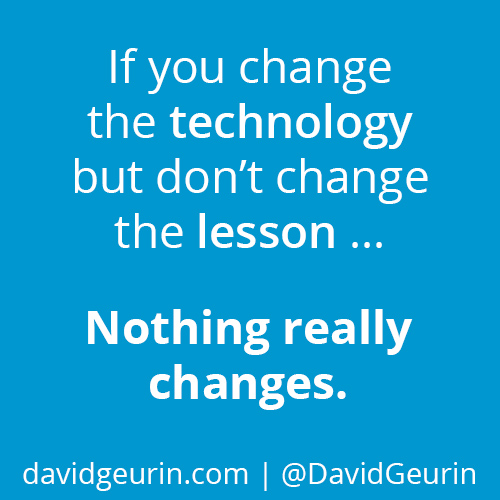
This quote from David Geurin summarizes SAMR nicely:
Further Reading & Learning about SAMR
10 ways to reach SAMR’s redefinition level, http://ditchthattextbook.com/2014/04/03/10-ways-to-reach-samrs-redefinition-level/. A collection of ideas to modify lesson plans to more fully take advantage of technology and the internet.
The SAMR model: engage in deep learning and authentic contexts, https://classroomconnections.eq.edu.au/topics/pages/2013/issue-7/samr-learning-technologies.aspx. A concise overview of the SAMR Model, with a different take on using word processors in the classroom.
SAMR Model Musings, http://blog.kathyschrock.net/2013/11/sarm-model-musings.html. Includes an interesting, non-technology based shift from regular note taking to sketchnoting.
SAMR - Belongs in a School Near You!, https://www.linkedin.com/pulse/samr-belongs-school-near-you-lisa-marie-gonzales-ed-d-
What is the SAMR Model and what does it look like in schools?, https://www.youtube.com/watch?v=SC5ARwUkVQg&feature=youtu.be
SAMR in 120 seconds, https://youtu.be/us0w823KY0g
References
“As We May Teach: Educational Technology, From Theory Into Practice,” http://www.hippasus.com/rrpweblog/archives/2014/04/08/FrameworksForEducationalTechnology_SAMRAndTheEdTechQuintet.pdf
“A Learning Story from the Foothills of the Alps,” http://beta.aalf.org/cms/?page=Global%20Storybook-%20Munich
Tuesday, July 19, 2016
Review Dell Chromebook 13 (i3 & touchscreen)
So here is a look at my 2nd high end model Chromebook I recently bought. I was really impressed with the HP Chromebook 13 and really thought of it as a real laptop replacement for teachers. The only concern that has come up since then is that it is so thin, could it be damaged easily? I don't know about that, but if that is your concern for a Chromebook and you still want high end, then the Dell 13 is probably for you.

It was made specifically for business users. And because of that the build is a little beefier. It feels more solid. Where as the HP was just a beautiful machine in terms of design, screen, and weight, the Dell 13 sacrifices some of that weight in favor of a more solid build. This thing can take a beating. It feels solid in the hands, but not too heavy. The keyboard is back-lit and spill resistant. And speaking of keyboards, man is this thing a pleasure to type on. I used to read reviews about great keyboards and it never really meant anything to me, but after typing on the Dell keyboard (and HP) a good keyboard goes a long way.
The top of the Chromebook has a sort of rubberized material on it that I am sure will hold up against scuffs and scratches. It also makes the laptop easier to hold onto and grip. The screen is gorgeous. Is it better than the HP? Probably not, but it definitely holds its own. Everything looks so good on it. Going split screen isn't a problem either as the 13.3 inch screen is plenty large for this mode.
It is definitely thicker than the HP Chromebook, but still thinner than my work laptop. Not to bash on Windows but when was turning on my new work laptop for pictures, it had one of those "we ran into some problems and need to restart your computer". Nice. 1 day old.
 Battery life is awesome as well. I have charged it one time and haven't needed to recharge it yet. Obviously I haven't done a lot of work on it, but still as of right now I have 81% battery left and 10 hours of time left. Amazing.
Oh yes, the elephant in the room...touchscreen. I went with a touchscreen model because as you know Android apps will soon make their way to Chrome OS and I thought touch might be helpful. Since I have had the laptop, I don't really find myself using touch that often. Part of that reason is that the trackpad is perfect. It is made of glass and responds perfectly to every touch. I have had or used about 9 laptops on my lifetime and this one is hands down the best. So in terms of keyboard and trackpad combo, I don't think I have ran across one that is this well put together. So touchscreen isn't a make or break. It is a nice addition, but as of right now, not a necessity.
 So how to does the i3 compare to the m3 of the HP? Well on the Octane benchmark, the HP was around mid 22,000's - low 23,000s. The Dell's i3 is usually in the mid to high 19,000's. I have ran the test a few times and haven't seen it crack 20,000 yet. Am I saying it is slow? Definitely not. Still boots in under 8 seconds and flies on everything I throw at it. My i3 Chromebox scored in the 15,000s so it is definitely an improvement.
Overall, it is easily one of the best Chromebooks out there. If you were looking to buy one, I am sure you could get away with getting the Celeron version with no touch. Everything else is standard, keyboard/trackpad & screen are the same on every model. I am curious to see how the touch screen plays out, but definitely impressed and happy with this machine.

It was made specifically for business users. And because of that the build is a little beefier. It feels more solid. Where as the HP was just a beautiful machine in terms of design, screen, and weight, the Dell 13 sacrifices some of that weight in favor of a more solid build. This thing can take a beating. It feels solid in the hands, but not too heavy. The keyboard is back-lit and spill resistant. And speaking of keyboards, man is this thing a pleasure to type on. I used to read reviews about great keyboards and it never really meant anything to me, but after typing on the Dell keyboard (and HP) a good keyboard goes a long way.
The top of the Chromebook has a sort of rubberized material on it that I am sure will hold up against scuffs and scratches. It also makes the laptop easier to hold onto and grip. The screen is gorgeous. Is it better than the HP? Probably not, but it definitely holds its own. Everything looks so good on it. Going split screen isn't a problem either as the 13.3 inch screen is plenty large for this mode.
It is definitely thicker than the HP Chromebook, but still thinner than my work laptop. Not to bash on Windows but when was turning on my new work laptop for pictures, it had one of those "we ran into some problems and need to restart your computer". Nice. 1 day old.

Oh yes, the elephant in the room...touchscreen. I went with a touchscreen model because as you know Android apps will soon make their way to Chrome OS and I thought touch might be helpful. Since I have had the laptop, I don't really find myself using touch that often. Part of that reason is that the trackpad is perfect. It is made of glass and responds perfectly to every touch. I have had or used about 9 laptops on my lifetime and this one is hands down the best. So in terms of keyboard and trackpad combo, I don't think I have ran across one that is this well put together. So touchscreen isn't a make or break. It is a nice addition, but as of right now, not a necessity.

Overall, it is easily one of the best Chromebooks out there. If you were looking to buy one, I am sure you could get away with getting the Celeron version with no touch. Everything else is standard, keyboard/trackpad & screen are the same on every model. I am curious to see how the touch screen plays out, but definitely impressed and happy with this machine.
Wednesday, June 29, 2016
Review HP Chromebook 13 G1 (Core m3 model)
So I am not a high end type of person. I rarely splurge and usually try and find the cheapest way to do something. Which is why I surprised even myself when I ordered the new HP Chromebook 13. Even worse, it was the Core m3 model which runs even more than the Pentium model.
Now if you are reading this chances are that you have already read some reviews and maybe have seen some videos of the HP Chromebook 13 in action. I am hear to tell you, however good it looked in the videos or how good it sounded as you read the reviews...it is 1,000% times better. When I took it out of the box I was shocked at how light weight it was. Then I noticed how solid it felt. I have held quite a few Chromebooks and this one felt great. It definitely lives up to the hype of a premium build.

Opening it up I was greeted to a gorgeous display. Once again, I'm not normally a spec guy, just a gets the job done guy, but this thing shines. All models of this Chromebook come with a Quad HD screen and it shows. Colors are vibrant, images & text are sharp, and the 13.3 inch screen size is actually a decent size for work. When I went side by side on some windows, there was plenty of room to work with. That was probably the biggest surprise, I didn't think a 13.3 inch screen could split the screen enough to make it usable.
So how does it feel using it? Typing on it is great. Everything works like a charm and I have zero complaints. The Core m3 model flies when moving around. I have a lot of scripts and formatting in my Sheets and sometimes the c720 slows down, the HP ran through it like it was nothing. As I used it, it felt faster than my i3 Chromebox. When I ran the Google Octane test, my assumption was correct...and by a lot. My i3 Chromebox scored in the 15,000s-16,000s, the HP Core m3 was in the high 21,000s to low 23,000s. I can't imagine needing anymore power than what this thing has.

In my opinion the HP Chromebook definitely lives up to the hype. The build quality is great, the screen is great, and the speed is great. I think this would have been one heck of a laptop for teachers, even the Pentium version. I have seen those Octane scores in the same range as my i3 Chromebox.
The only drawback is the lack of touch, on any configuration of this Chromebook. Android Apps are making their way to Chrome OS and some might do better in a touch environment versus mouse. I'm not 100% sold on this because I have used Remix OS, Android in desktop form, and it works just as well with a mouse with no touch required. I am getting in the Dell i3 with touch, so I am curious as to how it compares to the HP Chromebook.
If you are looking for a higher end Chromebook that will make people think twice about what a Chromebook looks like then this is the Chromebook for you.
Monday, June 13, 2016
The Learning Curve Part 3 - Apps & Extensions
As I mentioned in the last post, part of making a transition from one OS to a new one is making it as smooth as possible. Most people are going to be clicking around trying to open up programs or trying to figure out how to install programs. One of the benefits is that Chrome OS doesn't run any traditionally installed programs except the Chrome browser, because of this Chrome OS devices are faster and more secure. But people will want to have something that does something similar to traditional programs. That's where apps come in.

Those are some of my must have apps to help make that transition from Windows to Chrome OS a lot smoother. If you have any other apps you want to share go ahead and list them below.

Most of the apps that run on Chrome OS are web apps. In other words, shortcuts to webpages that do the work. There are a few that run outside of the Chrome browser, but most of the more powerful ones are web based. Extensions for the Chrome browser are the other tools that will help make the transition go more smoothly.
Once again in the second half of 2016, the entire Android Play Store will become available to Chrome OS. When that happens ever most of these suggestions won't be as necessary. Because there is a Photoshop app for Android. There are also better versions of Office on Android then on their Office web apps. It is something that will definitely need to be revisited once that happens.
This list of apps and extensions will be what I have found to be useful for teachers. I am sure that others will come out in comments later.
- Office 365 Mail Checker: a great extension if you are still locked into Outlook for emails. Notifies you with an email near the address bar and also one in the bottom tray. Chrome doesn't even need to be open to get the notification.
- Checker Plus for Gmail: if you happen to have Gmail as your main email, this is a must. Another extension that allows you to get email notifications and even respond without having to open up Gmail.
- Cloud Convert: one of the best all around file converters out there. If you don't like the way Google Drive's built in converter works, you can always try this one. I usually use it to convert pdfs to jpgs. Also integrates well with Google Drive.
- Pixlr: Doesn't need an introduction probably if you have researched Chromebooks before. Pixlr is a solid photo editor. It's not Photoshop, but if you need Photoshop on a regular basis you won't be buying a Chromebook.
- Nimbus Screenshot: taking screenshots of pages is very important for educators. This used to belong to Snagit, but they are discontinuing their Chrome extension, but this one is just as good. Another good screenshot extension is Fireshot. I actually use them interchangeably.
- Save to Google Drive: an unknown extension that is a must when you transfer into Chrome OS. This extension allows you to save any page, picture, or document directly to your Google Drive with one click.
- Google Keep: This extension is useful if you have started using Google Keep. Similar to some of the other extensions like Share to Classroom or Save to Google Drive, this app takes any webpage that you are on and shares it to Google Keep. This is useful because if you are putting together resources for students, but want to look at them in more detail later, you can save them to Keep and have them waiting for you at a later time.
- Share to Classroom: For teachers using Google Classroom, this extension adds a share button. When you see a website you want to share, just click it and it will go to the class you want to share it with.
- Office Editing for Docs, Sheets, & Slides: This is another must. This extension allows you to edit Office documents in Google Drive. Enough said.
- PDF Escape: In a perfect world, pdfs would be naturally editable, but they aren't. If you were to search PDF editors on the chrome web store, most aren't that highly rated. It is difficult to edit a pdf file. PDF Escape is an app that does a very good job of allowing you to open and edit directly into the pdf and save it. There are a ton of PDF apps out there and this is probably my favorite.
- HP Print for Chrome: talked about this in the printing post. A must if you have an HP printer.
Those are some of my must have apps to help make that transition from Windows to Chrome OS a lot smoother. If you have any other apps you want to share go ahead and list them below.
Saturday, June 11, 2016
The Learning Curve Part 2 - Printing
In part two of the learning curve series we will go ahead and look at the second biggest knock on Chromebooks, printing. Some people would say that printing from a Chromebook is the biggest issue, not Office. In the last post David Andrade brought up a good point. When Android apps make their way to Chrome OS in the second half of 2016, almost all these issues can easily be resolved. Most every printer comes with an Android app that allows for pretty simple printing. But Chrome OS devices last a long time. For example, every Chromebook on our campus won't get Android apps, neither will my Chromebox.

For most PCs installing a printer is pretty straight forward. In fact, most printers used to be installed via usb directly into the computer that used them. Nowadays, printers are generally set up as network printers, meaning you hook that printer up to a network and more than one device can print to it. And it is because of this shift in printer setup, the notion that Chrome OS is obsolete because you can't directly hook a printer up to it is almost null.
The first method that most people will look at is Google Cloud Print. When GCP was first rolled out it was difficult to set up. Most printers weren't set up to handle cloud printing. Early Chrome OS adopters probably had to set up Google Cloud Print on a Windows/Mac machine and keep it on as a printer server. Most printers are made now for Google Cloud Print. Set up is simple and painless. I recently bought a Samsung laser printer and it was completely set up without a computer. All I needed to do was plug it into our router.
If you need to set up a printer server through another machine our IT guy came up with a quick solution. He took an old laptop and installed the printers and put them on Google Cloud Print. Then he simply shared those printers with staff members. It allowed us to print to the machines and not have a laptop running 24/7 for the rare occasions we printed.
If you need to set up a printer server through another machine our IT guy came up with a quick solution. He took an old laptop and installed the printers and put them on Google Cloud Print. Then he simply shared those printers with staff members. It allowed us to print to the machines and not have a laptop running 24/7 for the rare occasions we printed.
If you happen to own an HP printer, they developed their own Chrome App, HERE. I talked about the HP printer app before, but I feel like some of the things are worth mentioning again. All you need to do is find the ip address of the printer. Type it in and you are done. The two printers near us are both HP and they haven't had an issue once. I set up this app on my two colleagues Chromeboxes and not one time have I heard them tell me they can't print.
And that is what we want when switching to a new OS, a seamless transition. If staff is able to work like normal and not have to worry about things working, then they are more willing to fully buy into what they are using.
Our campus also has copy machines that are set up on our network for direct printing as well, for class sets. It was always hit or miss on our laptops. Sometimes is would work, but most of the time it didn't. In fact, I know of a handful of teachers who have never printed directly to the copy machine. Something that you might not know is that if a printer is one the network it has an ip address. And when you type in that ip address you are taken to a webpage for that printer. Most printers have a way to directly print from that webpage. So that one teacher that could never print to the copying machine can now upload the file to print and send it to the copying machine. Also to note, these printer webpages have all the options that you can select on the actual copier. So if you want double sided & stapled, all you do it check the boxes and it will print.
So from this post it sounds like printing isn't a real issue anymore, and honestly it's not. When I started the Chromebook Challenge I had to keep my laptop on when I wanted to print because it was my server. This year? Don't need it. Chrome OS has come a long way in terms of printing. And I'm not sure if that is because of Google or the printer companies. Google Cloud Printing is still technically in beta even though it has been functional for years now.
Despite all the advances in printing, there are still a couple of things to be aware of. The options in the Chrome OS print screen aren't as detailed as a Windows print screen. Chrome OS basically gives you the option of what to print & how many copies. Also a lot of the success lies in the printer. Even though I have had zero problems with my personal Samsung laser printer, some people complain that the printer is always said to be offline. And keep in mind if your network printer isn't an HP, then you will have to set up a printer server on a Windows/Mac machine to run through, or use the solution we came up with and have one machine and share them out.
Wednesday, June 8, 2016
The Learning Curve Part 1 - What about Office?
 Ok so let's say you have been following my journey and have decided to take the plunge on going all in on Google. So you buy that new Chrome OS device and now you have to work through the dreaded learning curve. We all know it exists. Whether it be going from Windows 7 to Windows 8, Windows 7 to Windows 10, or even from Office 2012 to Office 2014. It doesn't matter when technology changes, there it is the learning curve. What do you need to do to be successful in the transition?
I have been exclusively Chrome OS for over a year now, so I have already gone through the curve. I also have two colleagues that I convinced to go Chrome OS this year and have helped them through their curve as well. They were both surprised that there wasn't much of a curve at all. Why? Well, the answer is simple. Most of the work of Chrome OS is done within a browser. It doesn't matter if you run Windows or MacOS, you use a browser. And chances are it is Google's Chrome browser. So you already feel comfortable when you turn it on.
Now, the number one thing everyone that has made the transition from Windows to Chrome OS is how to deal with Office Documents. Now while I was transitioning over from Windows to Chrome OS, I did a little research and found an extension called Office Editing for Docs, Sheets, and Slides. What this extension does is allow you to open an Office document in Google Drive, edit it, and save it as an Office document. You never have to change it over to a Google Doc if you choose not to.
After I installed that on my account and my colleagues, that helped out. But in reality, it wasn't perfect. Which leads us to the biggest issue about Office documents, formatting. Google Docs is about 97-99% accurate when converting Office to Google and I will say that that number is pretty accurate. When it becomes a problem is when there is a lot of formatting on the Office document. Then when it converts to a Google Doc, there will be some formatting that needs to be done on your part.
But here in lies my point, with every transition there needs to be some front end work put into it. When teachers got computers, there was a lot of work done to put together those power point presentations, worksheets in Word, or even tests in Word. But education changes. If you are still using the same power point from 5 years ago, maybe it is time you update it. And that is what I would tell those teachers that will complain about having to change and do work on their lectures.
Other issues with Office I have noticed, there is no smooth way to add in music into a Google Slide. Also, there is no way to easily add a watermark to a Google Doc.
Office is the one thing that people will say stops them from moving to Chrome OS. I am hear to tell you that the main issue you will run into is formatting. My recommendation is to convert it all in to Google Docs, Sheets, or Slides and go from there. Just know going in there will be some formatting that will need to take place eventually if you go from Office to Chrome OS. Once again, if you are using the same powerpoint for years and years, there are bigger problems that you need to tackle.
Next time we will talk about printing.
Thursday, June 2, 2016
The Perfect Solution?
I think it is no surprise that I think our school site should move away from Windows and towards Google & Chrome OS. I also have felt that a Chromebox is the ultimate device for teachers. I have documented my own journey, on this blog, from ditching Windows completely and going all in with a Chromebox this year.
But even though the beauty in Chrome OS is to be able to access your files & work anywhere you have a Chrome browser, some people still want a dedicated laptop. And here is where the struggle begins. You have a certain number of teachers who will never embrace a laptop. The keyboard is smaller, there is no dedicated numeric keypad, screen is too small, etc. And you will have another side that will argue that they need something mobile, so they can take it where ever they go.
I have found a solution that makes both people happy. Unfortunately, this pushes the old budget, but keeps it under $1000 a teacher, which is what I have heard our last laptops cost. My solution is to get a Chromebook that allows for a docking station, like the new HP Chromebook 13 G1.
But even though the beauty in Chrome OS is to be able to access your files & work anywhere you have a Chrome browser, some people still want a dedicated laptop. And here is where the struggle begins. You have a certain number of teachers who will never embrace a laptop. The keyboard is smaller, there is no dedicated numeric keypad, screen is too small, etc. And you will have another side that will argue that they need something mobile, so they can take it where ever they go.
It is one of the best Chromebooks on the market today, if not the best. I would recommend getting the m3 processor, so that initial cost of the Chromebook is $600. Definitely on the high end. But if you get every teacher the docking station that comes with it, for $150, then you have just turned the laptop into a desktop.
So Chromebook and docking station gets you to $750. You can easily find a monitor, mouse, & Chrome OS keyboard for less that $250. I would guess this set up would be around $900. But you actually now have two devices, a Chromebook (top of the line) & a desktop.
Now I know you might be thinking, just plug in an HDMI cable to it and you are good to go, why waste the extra money on a docking station. The docking station has a lot more going for it. More usb ports, ethernet connection, and 2 display ports. I used a Chromebook last year hooked up via HDMI and it worked, but this seems like a more powerful solution.
Also, why HP? Honestly, I think most Chromebooks are the same. I don't get impressed with shiny designs or other cool things. I care about specs. This is nice because it works with a Chromebook. They are made to go hand in hand.
Now, the Dell Chromebook 13 is also another Chromebook that could work in this case,
It is a great solid Chromebook as well. It has the option for a touchscreen for $629. So price range is very similar to the HP Chromebook with no touch. Dell doesn't make a docking station, but Plugable recently announced they have a docking station that works with Chromebooks, right now Dell is the only one, but more are coming.
Their docking station is $100, so the combined cost with a touch screen Chromebook is actually cheaper than the HP. It comes with more usb ports and has a DVI output, which is more compatible with most monitors. The only downside is that this won't charge the device when it is plugged in like the HP will.
But two solutions that gives everyone what they want.
Thursday, May 26, 2016
Well this is a nice surprise...
So I was looking at my page views and noticed a spike and looked as to where they came from and saw they came from a site, EdTechMagazine.com. So I clicked on the link and this is the page I saw

So I scrolled down until I saw this

WOW. I am shocked that this blog was recognized. Actually I am even more honored that someone thinks what I write actually means something.
By the way the rest of the list is HERE. Lots of great blogs I actually read there. Go check them out.

So I scrolled down until I saw this

WOW. I am shocked that this blog was recognized. Actually I am even more honored that someone thinks what I write actually means something.
By the way the rest of the list is HERE. Lots of great blogs I actually read there. Go check them out.
A Look Back at the Year
So a full year is in the books for using a Chrome OS device and I have to say, I didn't miss Windows at all, I did load Windows 10 & Remix OS on my old laptop though. My postings have been far and few between because I have been super busy. I had a student teacher 2nd semester. He did a good job and didn't require too much over seeing, but when I get a student teacher I find myself helping out around the campus with technology issues.
So what did I get done this year? Well first up was AP Qualifications. I have a colleague who has to pour through about 200 applications and see if they qualify. I asked him what he was looking for and he said just grades. So I took his application and turned it into a Google Form. I found a way for the Custom Formatting to search for the unqualified grades and highlight them in red and then highlight their names so they would be flagged out. Then to top it off I had a second tab for his acceptance list. I had to run an add-on to sort by color and then pull that data to another sheet. Well once I showed his dean, she asked me to do it for the rest of her department. So I did and I think that will streamline the AP applications next year.
His dean is in charge of AP testing so she had to put together the master AP list. It was easy once I got everything into a Sheet it was easy to manipulate the data. So what I have planned for next year is for the AP qualification lists to be automatically pulled from the AP applications qualifying tab. So in theory, once they close the application everything will be done, acceptance & master list. Big shout out to Alice Keeler who is 100% right when she says "The Answer is Always a Spreadsheet".
After she saw this she asked me to help with an AP/IB registration form. Students will complete a form where they input their AP schedule. It will identify any types of conflicts (by flagging them in the Sheet) and using FormMule email the students their AP schedules...if our district would open up student email access. It will also have necessary papers to qualify for fee reduction & help identify students that might be in CIF playoffs when testing rolls around.
I also work on a Staff Resource Doc that I saw from CUE. Basically, on one Doc it has everything ever needed for a staff member. I set it up so that certain things will require staff to make a copy first, like our warehouse order form. And of course it is set up to automatically add up the total cost for the teacher.
Also made another Form for requesting set up in the auditorium. Staff fills it out and once again thanks to FormMule a nice email is sent to the custodians as to what needs to be set up.
And finally, I have been trying to convince our admin to seriously look at buying Chrome OS devices for our next upgrade.
And as I look back I realize that most of this, if not all of it, would not have happened if I didn't have a Chromebox. It pushed me into a direction to use GAFE more. And when you start using it you realize just how useful & powerful it is. And I think that is the big picture of using a Chrome OS device.
So what did I get done this year? Well first up was AP Qualifications. I have a colleague who has to pour through about 200 applications and see if they qualify. I asked him what he was looking for and he said just grades. So I took his application and turned it into a Google Form. I found a way for the Custom Formatting to search for the unqualified grades and highlight them in red and then highlight their names so they would be flagged out. Then to top it off I had a second tab for his acceptance list. I had to run an add-on to sort by color and then pull that data to another sheet. Well once I showed his dean, she asked me to do it for the rest of her department. So I did and I think that will streamline the AP applications next year.
His dean is in charge of AP testing so she had to put together the master AP list. It was easy once I got everything into a Sheet it was easy to manipulate the data. So what I have planned for next year is for the AP qualification lists to be automatically pulled from the AP applications qualifying tab. So in theory, once they close the application everything will be done, acceptance & master list. Big shout out to Alice Keeler who is 100% right when she says "The Answer is Always a Spreadsheet".
After she saw this she asked me to help with an AP/IB registration form. Students will complete a form where they input their AP schedule. It will identify any types of conflicts (by flagging them in the Sheet) and using FormMule email the students their AP schedules...if our district would open up student email access. It will also have necessary papers to qualify for fee reduction & help identify students that might be in CIF playoffs when testing rolls around.
I also work on a Staff Resource Doc that I saw from CUE. Basically, on one Doc it has everything ever needed for a staff member. I set it up so that certain things will require staff to make a copy first, like our warehouse order form. And of course it is set up to automatically add up the total cost for the teacher.
Also made another Form for requesting set up in the auditorium. Staff fills it out and once again thanks to FormMule a nice email is sent to the custodians as to what needs to be set up.
And finally, I have been trying to convince our admin to seriously look at buying Chrome OS devices for our next upgrade.
And as I look back I realize that most of this, if not all of it, would not have happened if I didn't have a Chromebox. It pushed me into a direction to use GAFE more. And when you start using it you realize just how useful & powerful it is. And I think that is the big picture of using a Chrome OS device.
Subscribe to:
Posts (Atom)